open a countdown
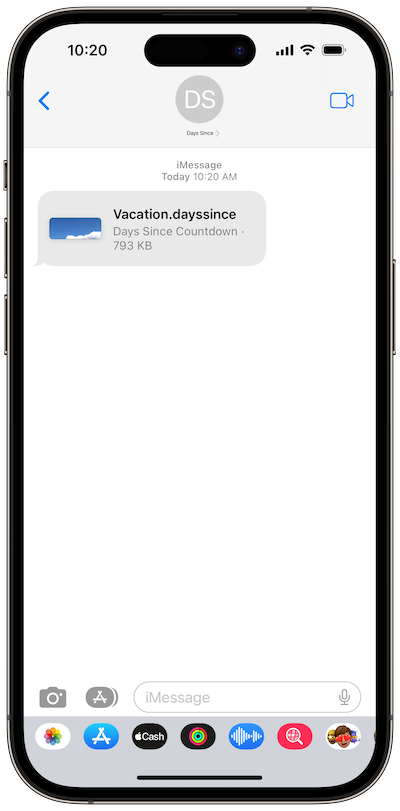
Follow the steps below to open a countdown that was shared with you through a text message or e-mail.
To Open a Countdown:
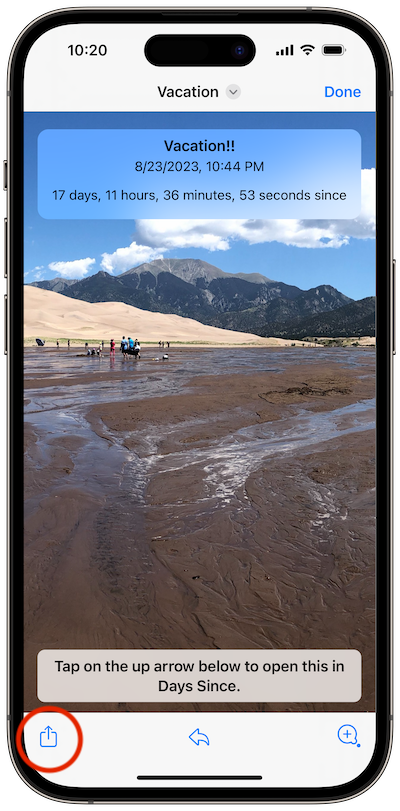
Tap on the countdown
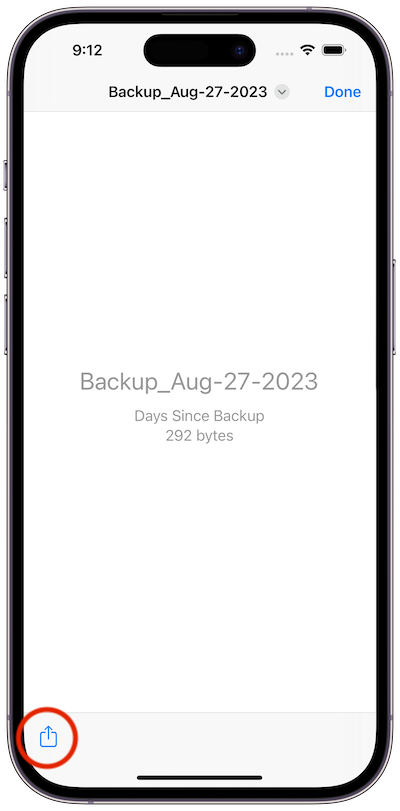
When the preview opens, tap on the action arrow in the lower left corner
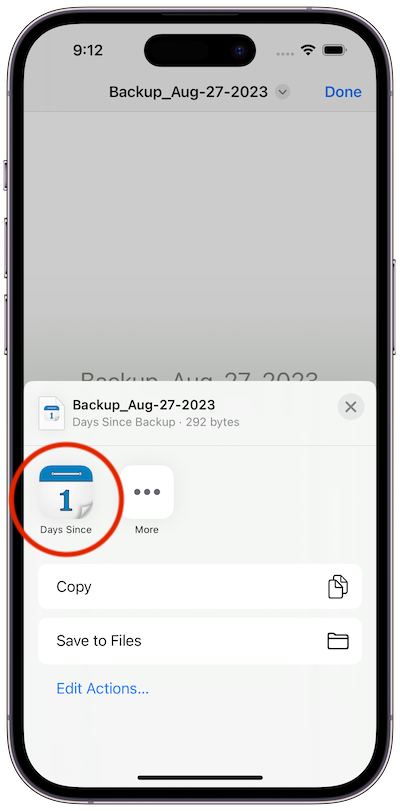
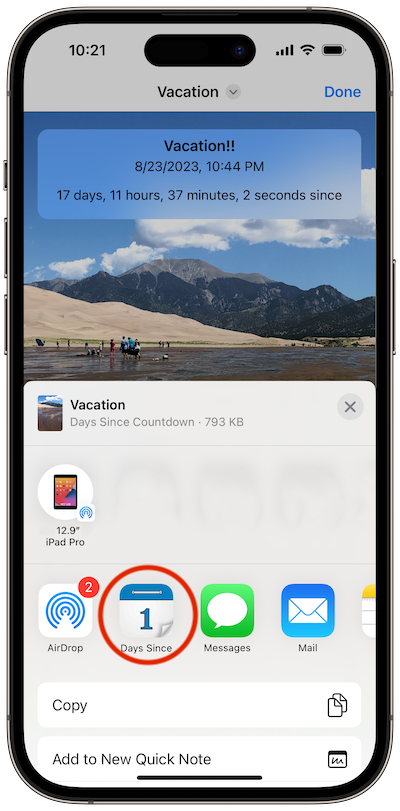
When the overlay appears, tap on the Days Since icon. Days Since will open and the countdown will be added to your list.
Restore a backup
Follow the steps below to restore countdowns and settings from a Days Since Backup File.
To Restore a Backup:
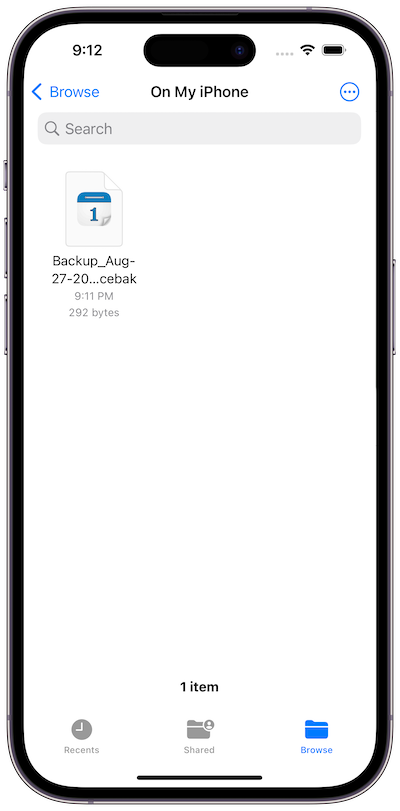
Locate the file in the Files app (or wherever it was saved)
Tap on the backup file to open a preview and then tap on the arrow in the lower left corner
When the overlay appears, tap on the Days Since icon to open it.
After Days Since opens, you’ll be asked if you would like to restore the backup file.