Customize Your Home Screen Widget Style
You can now personalize how your Home Screen widgets look. The latest update introduces 9 visual styles that let you match the widget to your Home Screen aesthetic or make important events stand out.
Whether you prefer something minimal, bold, or playful, you can switch styles in seconds directly from the widget settings.
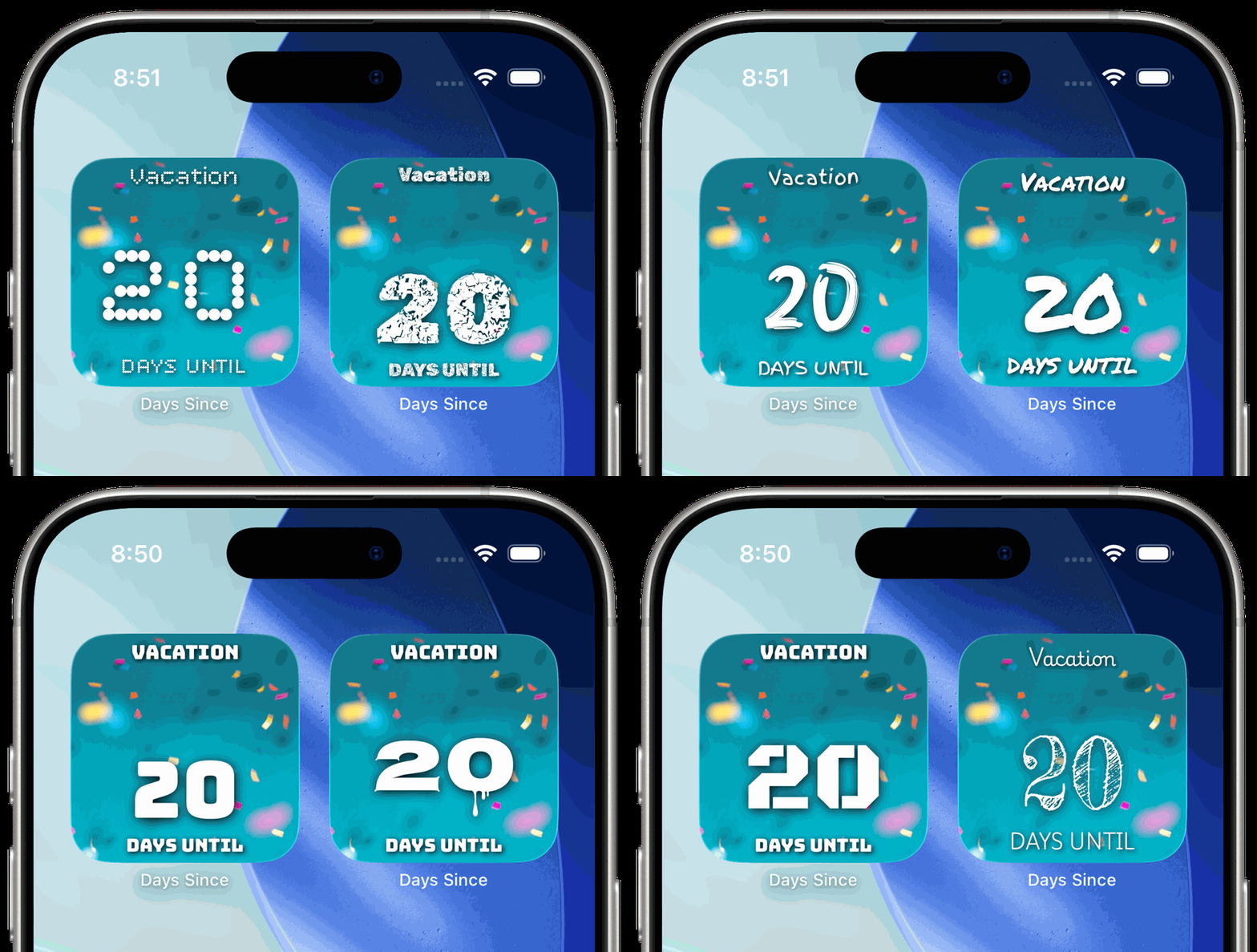
Available Widget Styles
You can choose from the following preset styles:
Legacy – The original classic widget appearance.
Playful – A fun handwritten look.
Bold – Larger typography designed for quick readability.
Vintage – A retro-inspired appearance with subtle texture.
Spooky – A drippy, themed style perfect for seasonal setups.
Finger Paint – A fun, expressive look with a hand-drawn feel.
Marker – Clean strokes with a marker-style typography effect.
Dots – A dotted visual style for a modern decorative touch.
Distressed – A textured, worn look that adds character.
You can switch between styles anytime without affecting your saved events.
How to Change the Widget Style
Follow these steps to change the style of a widget:
Note: You must add a new widget to change the style.
1. Add a Widget
Long-press on your Home Screen until the icons start to jiggle.
Tap the + button in the upper corner.
Search for Days Since and add the widget.
Tap Done so the icons stop jiggling.
2. Edit the Widget
Once the widget is on your Home Screen, long-press the widget.
Tap Edit Widget.
3. Choose a Style
Find the Style option in the widget settings.
Select one of the 9 available styles from the list.
The widget will update immediately.

Tips
You can place multiple widgets and give each one a different style.
Style changes happen instantly and do not affect your events or dates.
Need Help?
If you have questions or run into any issues, visit the support page:
https://www.dayssince.app/support
Or contact support directly through the app.