Version 9.6.0
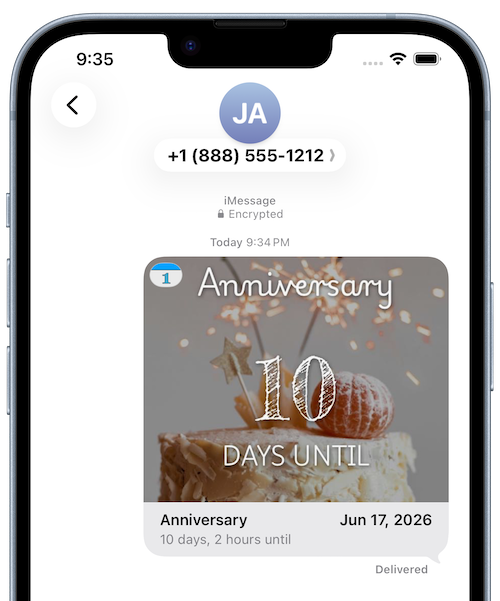
We’ve added an iMessage App!
You can now share your countdowns directly from Messages!
Version 9.5.0
Countdowns are better together! You can now collaborate on events with friends and family, making it easy to plan, update, and celebrate together.
Simply open a countdown and tap the Share icon.
Widgets just got more customizable. Choose your own text colors to create the perfect look for your Home Screen.
Edit Widget > Text Color
Introducing Countdown History! See a timeline of changes made to your events and keep track of important updates.
Edit Countdown > History
Have a feature or improvement in mind? Let us know!
Version 9.4.0
“Hey Siri, how many days until [countdown name] in Days Since?”
You can now view your countdowns in a grid view!
You can now use emojis for event icons!
Added sorting to the Watch app!
Added support for Italian & French!
Various performance and bug fixes.
VersioN 9.3.0
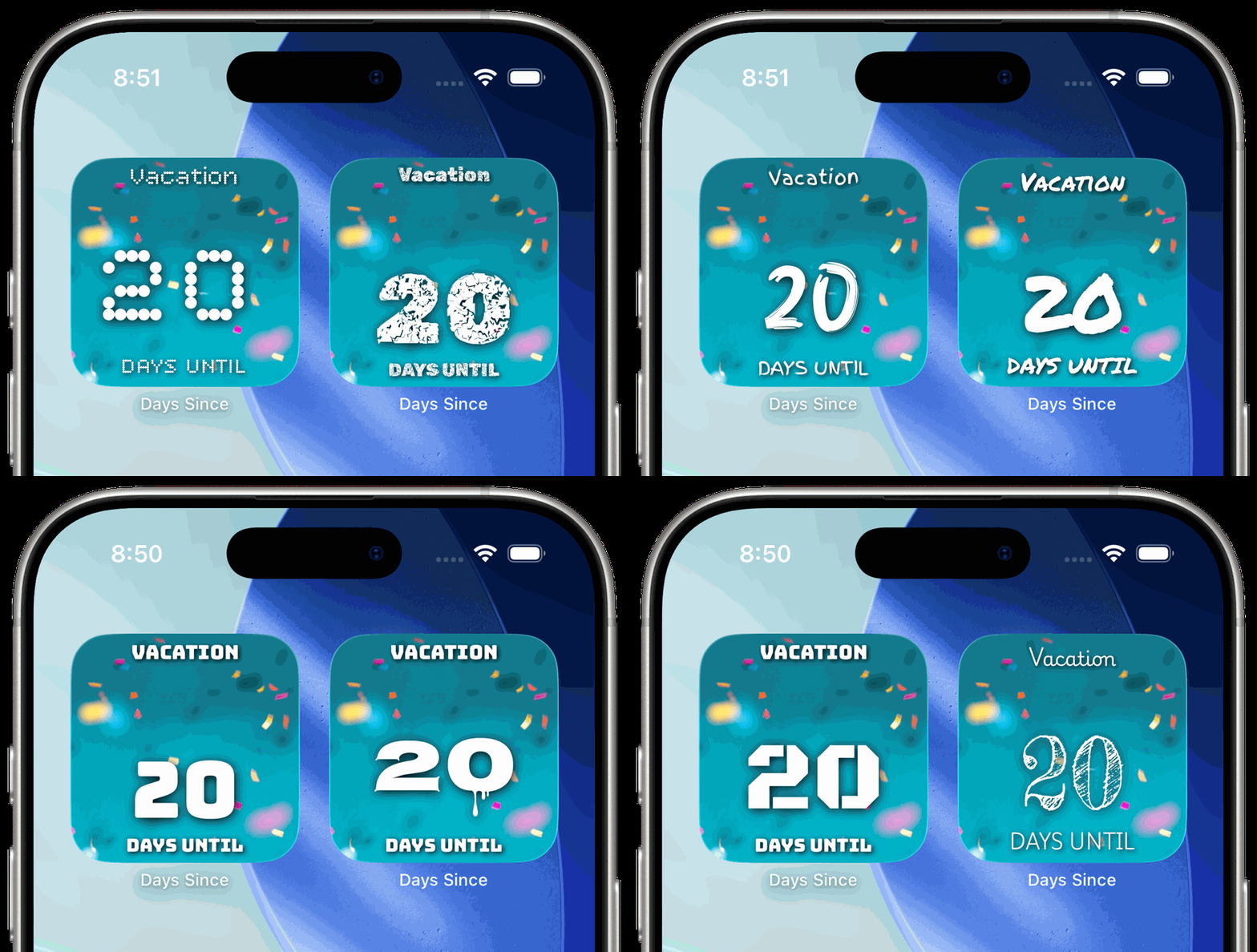
Widget Styles: The latest update introduces 9 visual styles that let you match the widget to your Home Screen aesthetic or make important events stand out.
New Formats: You can now count down (or up) in Weekends and Weekdays!
VersioN 9.2.0
Category Search: Find countdown categories right from your Event List.
Tap to Celebrate: Tap while viewing a countdown to launch confetti (included in the Colors & Effects Pack).
Background Finder: Search stock backgrounds to style your countdowns.


VersioN 9.1.0
Adds support for German. Change your preferred language under App Settings or the Settings app.
VersioN 9.0.0
iOS 26 Support
We’ve gone shiny —updated for iOS 26 with Liquid Glass vibes.
Add flair to your countdowns with a selection of over 100 stock backgrounds—pick one to match the moment!
The party’s over…or is it? With our new Quick Date Adjustments, you can shift birthdays, anniversaries and other events right into next year!
Added the ability to differentiate between upcoming & past countdowns in your event list.

VersioN 8.2.0
Apple intelligence
You can now generate custom countdown backgrounds using Apple Intelligence & Image Playground (on supported devices running iOS 18.1 or later).
Supported devices include:
iPhone 16
iPhone 16 Plus
iPhone 16 Pro Max
iPhone 16 Pro
iPhone 15 Pro Max
iPhone 15 Pro
iPad Pro (M1 and later)
iPad Air (M1 and later)
iPad mini (A17 Pro)
You can learn more about Apple Intelligence on Apple’s website.

App Icons
Added better support for dark and tinted app icons.

VersioN 8.1.0
Watch App
Bug fix in the Watch OS app.
VersioN 8.0.0
Additional localizations
Added support for additional languages.
VersioN 7.6.0
Performance improvements
Improved widget reloading after changes to the countdown.
Improved search and handoff support
VersioN 7.5.0
Exporting Countdowns
With version 7.5.0, you can now export countdowns that can be opened by other users with Days Since! These files can be sent through Airdrop, text message or e-mail, etc.
Learn more about sharing.
Days Since Backup
In addition to exporting CSV files, you can now save Days Since backup files, containing all of your countdowns. These files can be opened by Days Since to import countdowns again in the future. This can be useful if you don’t use iCloud or need to transfer countdowns between iCloud accounts.
Version 7.4.0
UPDATES TO ALERTS
You now have the option to keep alerts in Notification Center until they are viewed. In the previous version of Days Since, all alerts were removed from Notification Center when the app was opened. Now, when “Keep Alerts Until Viewed” is ON, alerts will remain until you tap on them or view the countdown they are tied to. Events will also show an unread indicator when they have an alert in Notification Center.
Note: This is OFF by default but you can toggle it ON under “App Settings”.

AUTOMATICALLY RESCHEDULE ALERTS
Alerts are now automatically rescheduled when the date of a countdown is reset or changed. Notifications that you would’ve received based off the old date are now deleted and rescheduled.
Note: This is ON by default but you can change this under “Countdown Settings”.
APPEARANCE
Prefer to always use the Dark or Light mode of Days Since? You can now choose which appearance you’d like to use in Settings.

Version 7.3.0
duplicate countdowns
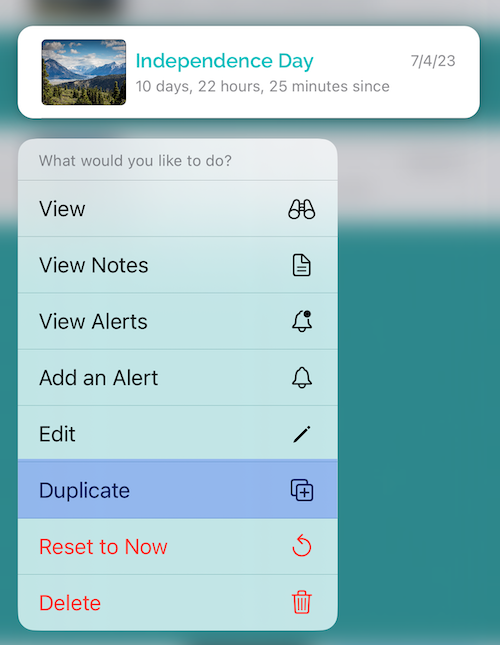
You can now duplicate countdowns by long pressing on them in your event list or by tapping the duplicate button while editing.
bug fixes
Fixed a bug that caused the keyboard to cover long countdown notes.
Version 7.1.0
NEXT UP WIDGETS
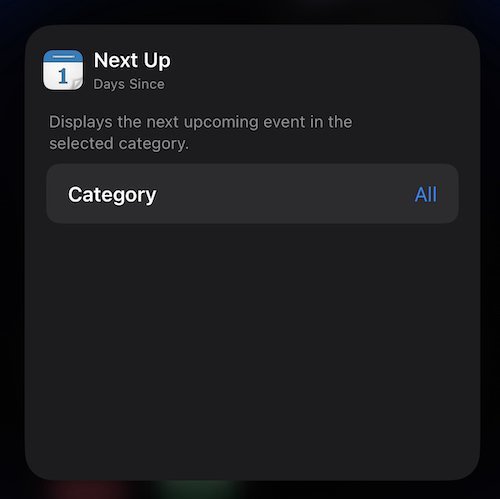
We’ve added new widgets! The new Next Up widget automatically displays the next countdown that will reach zero. You can filter this by category (or by all events) and is available on the Lock Screen or Home Screen.
IMPROVED LIST WIDGETS
You can now add multiple list widgets to your Home Screen and display different countdowns in each one. By long pressing on these widgets you can now select the individual countdowns to display.
OTHER IMPROVEMENTS
We’ve added the ability to remove an event’s icon.
Fixed a bug that prevented countdowns that used a solid color background from appearing in widgets.
Version 7.0.0
LOCK SCREEN WIDGETS
With iOS 16, you can now add widgets to your Lock Screen! There are 3 styles to choose from:
Rectangular
Can be placed below the time on the Lock Screen. This widget displays the title and time left for a single countdown.
Gauge
Can be placed below the time on the Lock Screen. This widget displays the time left for a single countdown in a circular gauge.
Inline
Can be placed above the time on the Lock Screen, next to the current date. This widget displays the title and time left for a single countdown.

STOPPING COUNTDOWNS
Your countdowns can now be stopped. You can stop a countdown by tapping on the red Stop button while editing an event.
With this new feature you can:
Track Streaks
Create an event (My Streak) and work towards your goal. If you break your streak, edit the event and hit Stop. Create another event to start again and try and beat your last one.
Stop Tracking Something
For example, if you created an event for the date you purchased a vehicle, you can stop the countdown when you sell it.
Stop Countdowns at Zero
If you want your countdown to read zero after it passes, simply edit the event after it occurs and set the stop date to match the date of your event.

NEW STYLE
You can now display your countdown’s graphically instead of plain text. You can set this by editing your event, tapping on Style and choosing Bars.
You can also set the default style to use on new events by tapping on the gear in Days Since, to open Settings, and tapping on Default Countdown Style.
